Safeguard is currently in pre-release status. As we continue to refine and enhance this product, you may notice occasional unexpected behavior or variations in performance. Your feedback during this pre-release phase is invaluable — please share any issues or suggestions with our support team to help us deliver the best possible experience for general availability.
Overview
Safeguard provides multiple ways to trigger backups of your Meraki network configurations, ensuring you have flexibility and control over when your configurations are backed up.
Whether you need an immediate backup before making critical changes or want automatic snapshots when configurations change, Safeguard has you covered.
This guide explains the different backup methods available, how each one works, and when to use them.
Automatic Change Detection is planned for release during Q1 2026.
Available Backup Methods
Safeguard currently supports three backup triggering methods:
- Initial Backup: Automatically triggered when you add new organizations or networks.
- Manual Backup: On-demand backups that you trigger yourself.
- Automatic Change Detection: Automatic backups triggered when configuration changes are detected in your Meraki organization.
Initial Backup
What is an Initial Backup?
An initial backup is the first backup that Safeguard creates for your organization, networks and templates. The initial backup creates a baseline of your configuration. This first snapshot serves as your starting point for tracking future changes and enables you to compare configurations over time.
When Does It Happen?
Initial backups are triggered automatically:
- When you add a new organization to Safeguard for the first time
- When new networks or templates are added to an existing organization that's already in Safeguard
How it Works
- The backup process begins immediately after the organization/network/template are added
- A confirmation modal shows you what's being backed up (organization names, template count, network count, estimated backup time)
- You'll see backup status indicators on the Safeguard dashboard
- The first snapshot will be labeled "Initial Backup" in your snapshot history
Manual Backup
What is a Manual Backup?
A manual backup is an on-demand backup that you trigger yourself whenever you need it. This gives you complete control over when your configurations are backed up.
When to Use Manual Backup
Manual backups are useful when you:
- Need to back up configurations immediately before making critical changes
- Want to capture a specific configuration state for testing or rollback purposes
- Need a backup outside of your automatic change detection
- Are preparing for a major network update or maintenance window
How to Trigger a Manual Backup
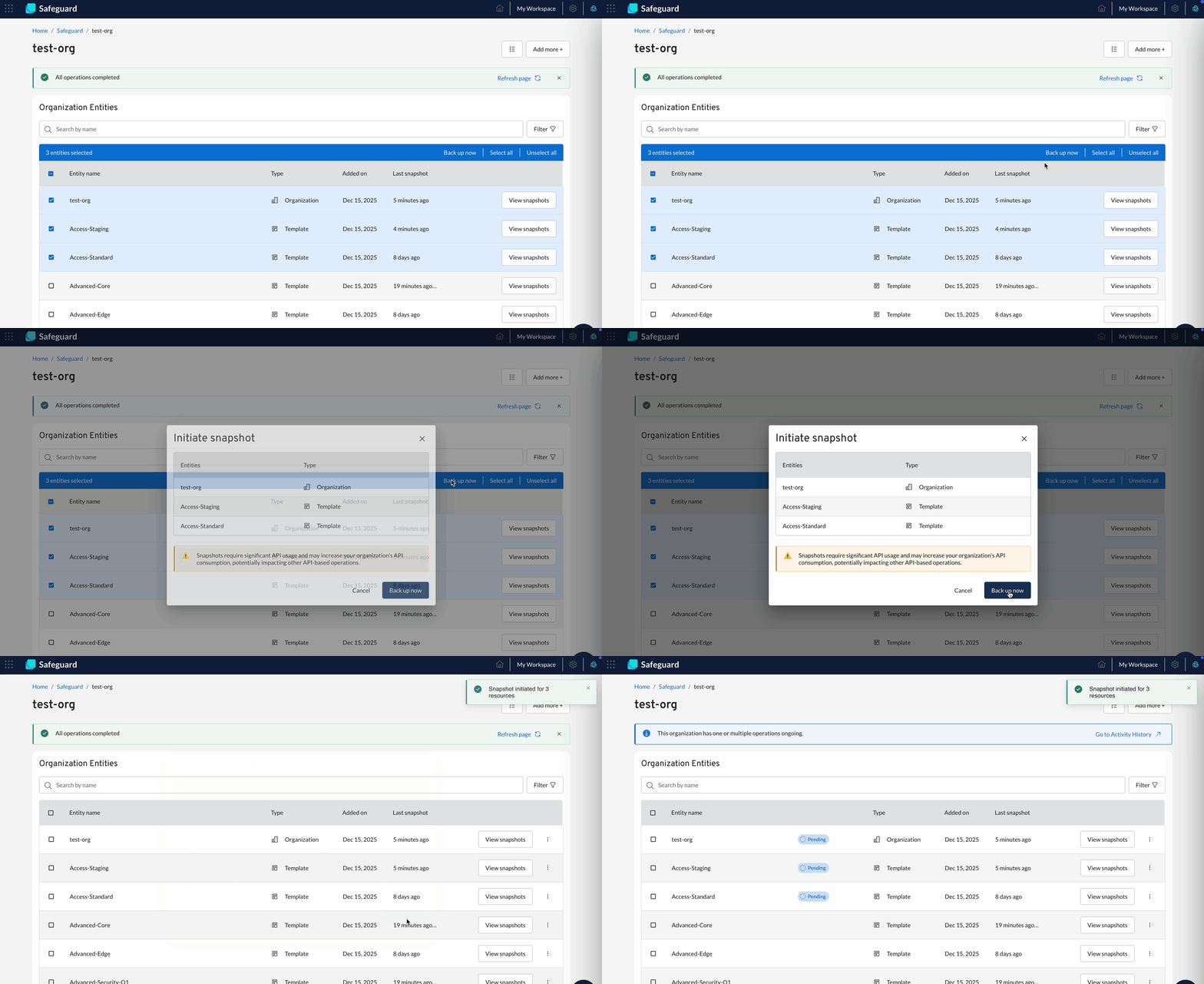
Step 1: Select Entities to Back Up
- Navigate to the Safeguard dashboard
- Select the organization containing the entities you want to back up
- Choose one or more entities (organization, networks or templates) by clicking their checkboxes
- You can select individual entities (organization-level configurations, networks or templates)
- OR select multiple entities at once for batch backups
Step 2: Initiate the Backup
- Click the "Back up now" button
- A confirmation modal will appear showing:
- The number of entities being backed up
- Estimated time for the backup to complete
- Review the information and click "Confirm" to start the backup
Step 3: Monitor Progress
You have multiple ways to monitor your backup progress:
- Notification Bar: A notification bar appears showing real-time progress.
- Status Tags: Each entity shows a status tag: Pending, Backing up, or Complete.
- Activity History Page: Navigate to the Activity History page to see all backup operations.
How Manual Backups Work
- Backups happen sequentially, one entity at a time, not in parallel. This is by design to respect Meraki API rate limits and prevent overloading the Meraki Dashboard API.
- For instance, if you select 10 networks, each network backs up one after another (in alphabetical order).
- The total backup time depends on the number of entities selected and whether they contain devices or not.
Automatic Change Detection
What is Automatic Change Detection?
Automatic change detection is a system that continuously monitors your Meraki organization for configuration changes. Safeguard polls the Meraki change log every minute and automatically triggers a backup whenever changes are detected to your networks, templates or organization-level settings.
How Automatic Change Detection Works
When enabled, Safeguard will:
- Monitor continuously: Poll the Meraki API every minute to check for configuration changes.
- Detect changes: Identify when configurations have been modified in your Meraki organization.
- Trigger backups automatically: Immediately initiate a backup of the affected entity (network, template or organization).
- Capture the change: Create a new snapshot that includes the detected configuration changes.
Important Considerations for Automatic Change Detection
API Polling Frequency
- Safeguard polls the Meraki API every minute
- This provides near-real-time detection without overwhelming the API
- Changes are typically captured within minutes of occurring in your Meraki Dashboard
Backup Triggering
- A backup is triggered only when actual configuration changes are detected
- No unnecessary backups are created when configurations remain unchanged
Sequential Processing
- Just like manual backups, change detection backups run one entity at a time to respect API rate limits
- If multiple changes are detected simultaneously, backups are queued and processed sequentially
Monitoring Backup Status
Regardless of which backup method you use, Safeguard provides comprehensive monitoring tools to track your backup operations:
Status Indicators
Each entity displays one of these status tags:
- Pending: Backup has been queued and is waiting to start.
- Backing up: Backup is currently in progress.
- Completed: Backup has successfully finished.
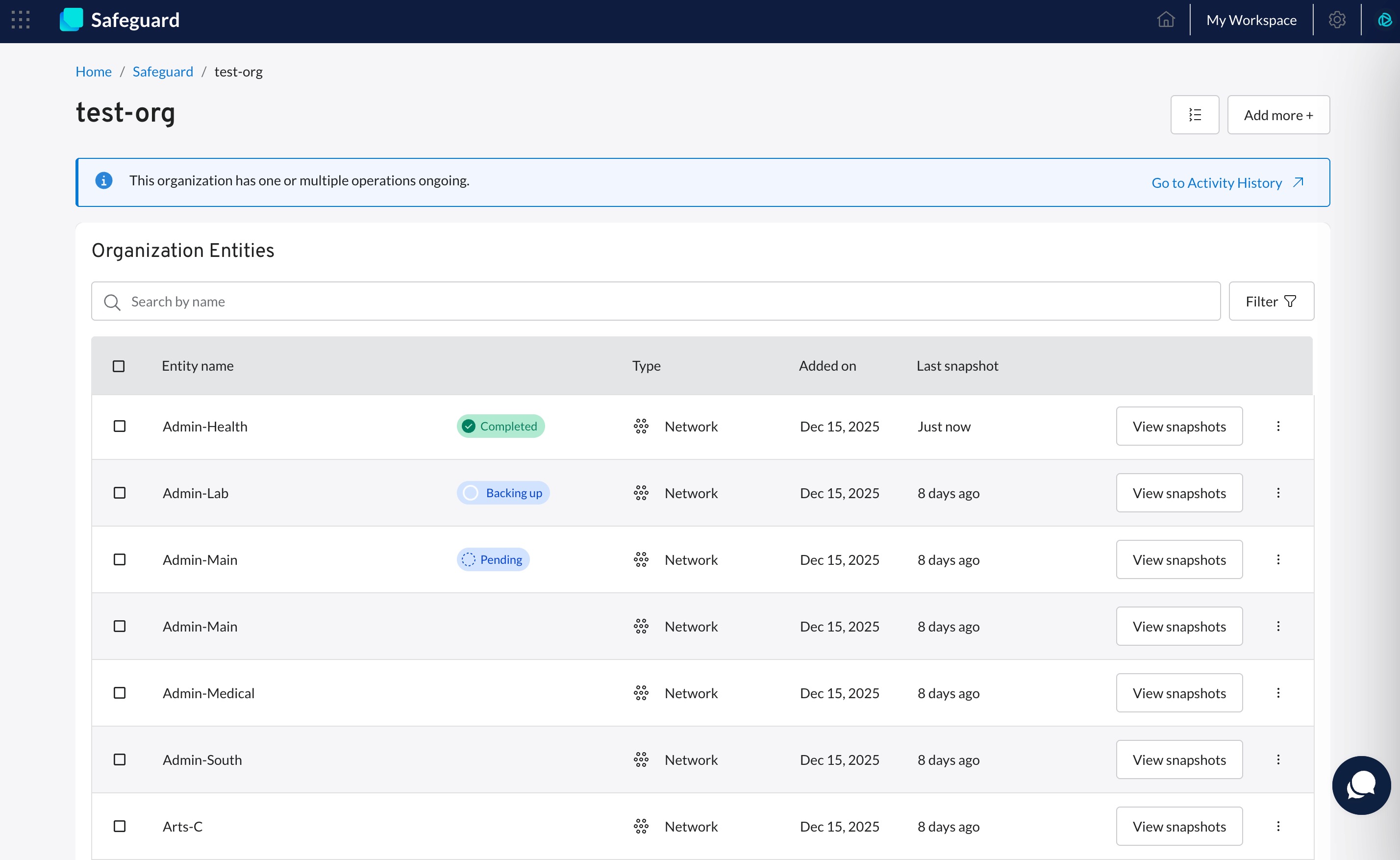
Notification Bar
- Shows real-time progress for active backups
Monitoring Drawer
- Click on any status tag to open the Monitoring drawer
- View detailed information about the backup job
- See job operation logs and error messages (if any)
Activity History Page
- Navigate to Activity History from the Organization Entity page
- View the status of all backup operations across your organization
- See who initiated each backup and when
Canceling a Backup
When Can You Cancel a Backup?
You can only cancel a backup while it has a status of Pending. Once a backup is in progress, it cannot be canceled and must complete.
How to Cancel a Pending Backup
- Go to the Activity History page
- Locate the backup job you want to cancel
- Look for the "Cancel" button in the Activity Log
- Click "Cancel" to stop the pending backup
- The backup job status will be changed to "Canceled"
Best Practices
- Trigger a manual backup before making major configuration changes in the Meraki Dashboard
- Use manual backups to capture specific configuration states for testing or comparison
- Monitor backup completion before proceeding with critical changes
- Review Activity History regularly to ensure backups are completing successfully
- Use the Monitoring drawer to track backup activity
- Remember that backups run sequentially - plan accordingly for large organizations
Common Questions
Q: Can I cancel a backup that's already in progress?
A: Currently, backups can only be canceled while 'Pending'. Once in progress, you won't be able to cancel it. However, you can monitor progress through the notification bar or the Monitoring drawer.
Q: Why do backups run one entity at a time instead of all at once?
A: Backups run sequentially to respect Meraki API rate limits. Running all backups simultaneously could exceed rate limits and cause failures. Sequential processing ensures reliable, consistent backups.
Q: How quickly will changes be detected and backed up?
A: Safeguard polls the Meraki API every minute. Once a change is detected, a backup is triggered. Changes are typically captured within minutes of occurring in your Meraki Dashboard. However, if there are many entities already being backed up or pending in the queue, the change detection backup may take longer to complete as backups are processed sequentially.
Q: How do I know if my backup failed?
A: Check the Activity History page to see the status of all backup operations. Failed backups will be marked with error indicators. You can click on the failed backup to see detailed error information.
Q: Can I use both manual backups and automatic change detection?
A: Yes! Manual backups and automatic change detection work together. Use automatic change detection for continuous backups, and trigger manual backups when you need immediate control before critical changes.
