Overview
You may need to remove an organization from Safeguard for various reasons:
- The organization is no longer active or needed
- The organization has been decommissioned in Meraki
- Or any other reason
Safeguard uses a soft deletion mechanism with a 14-day grace period, giving you time to change your mind or download critical backup data before permanent deletion.
This guide walks you through the process of removing an organization from Safeguard and explains what happens during and after the grace period.
Safeguard is currently in prerelease status. As we continue to refine and enhance this product, you may notice occasional unexpected behavior or variations in performance. Your feedback during this prerelease phase is invaluable — please share any issues or suggestions with our support team to help us deliver the best possible experience for general availability.
Before You Begin
Before removing an organization from Safeguard, make sure you:
- Understand the implications: Removing an organization stops all backups and schedules deletion of all snapshots
- Have Owner role in your workspace
- Have reviewed your backup data: Consider downloading important snapshots before removal
- Know about the 14-day grace period: You have 14 days to reinstate the organization if needed
Understanding the Soft Deletion Process
When you remove an organization from Safeguard, it enters a "Pending Delete" state rather than being immediately deleted. Here's what this means:
During the 14-Day Grace Period:
- Organization is marked for deletion (status: PENDING DELETE).
- Backups are stopped: The organization is disconnected from Safeguard and no longer being backed up.
- Networks and templates are not backed up anymore: All associated networks and templates can no longer be backed up.
- Existing snapshots are scheduled for deletion: All existing snapshots are placed in the deletion queue.
- You can still reinstate: The organization and all its data can be restored within 14 days.
- You can download the most recent snapshot data: The latest snapshot for each entity remain accessible for download during this period.
After the 14-Day Grace Period:
- Permanent deletion occurs: The organization and all associated data are permanently removed.
- Existing snapshots are deleted: All backup snapshots are permanently deleted and cannot be recovered.
- No reinstatement possible: Once the grace period expires, the organization cannot be reinstated.
Step-by-Step Guide
Step 1: Navigate to the Organization Page
- Log in to your workspace and navigate to Safeguard
- You'll see the Safeguard dashboard displaying all organizations currently added to Safeguard
Step 2: Identify the Organization to Remove
- Locate the organization card for the organization you want to remove from Safeguard
- Take a moment to verify this is the correct organization. Check the organization name and entities
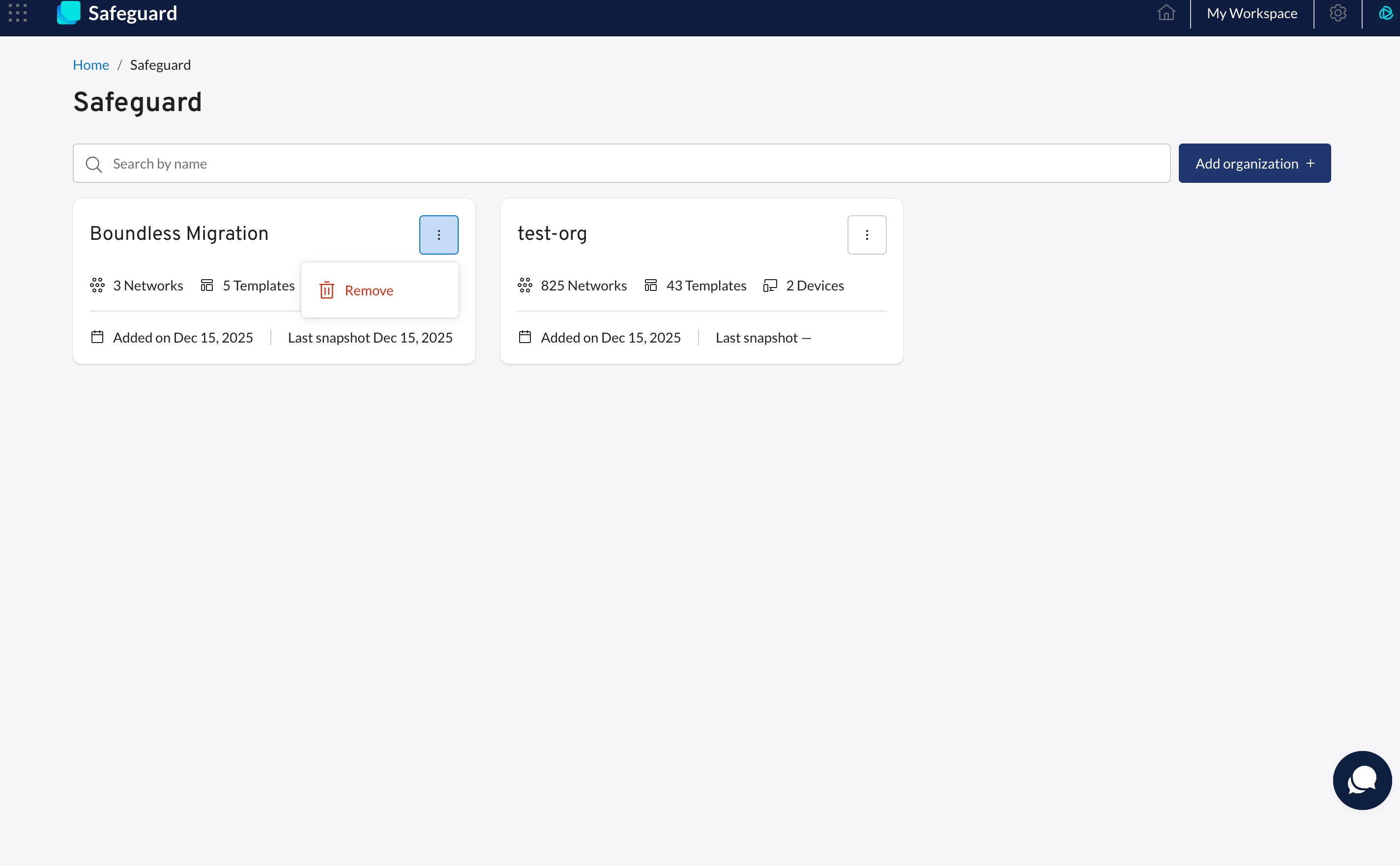
Step 3: Access the Remove Action
- On the organization card, click the three-dot icon (⋮) (actions menu)
- A dropdown menu will appear with available actions
- Select "Remove" from the menu
Step 4: Review the Confirmation Modal
A confirmation modal will open displaying important information about the removal process.
Read the warning carefully and ensure you understand:
- All backups will stop immediately
- All networks and templates will no longer be backed up
- The organization can be reinstated within 14 days
- All snapshots will be deleted after 14 days
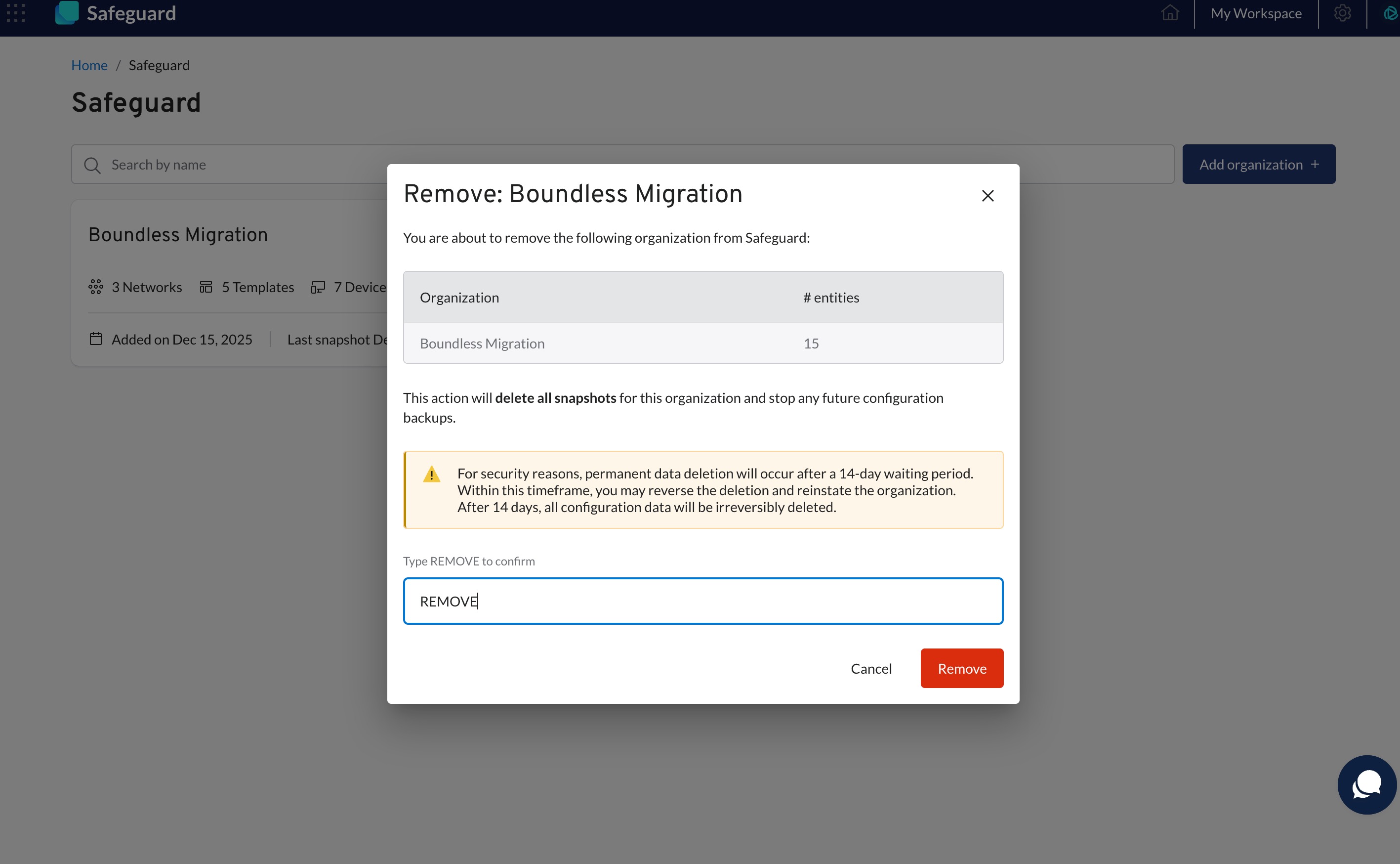
Step 5: Confirm Removal
- In the confirmation modal, locate the text input field
- Type "REMOVE" exactly as shown (typically uppercase, but check the modal for specific requirements)
- The "Remove organization" button will become enabled once you've typed the correct confirmation text
- Click the "Remove organization" button to proceed
Step 6: Organization Marked for Deletion
After confirming the removal:
- Success notification appears, confirming the organization has been marked for deletion.
- Organization status changes to "Pending Delete". The organization card on the dashboard will now display:
- Status: "Pending Delete”
- Deletion scheduled date (e.g., "Deletion scheduled for: [date]")
- Backups stop immediately: The organization is disconnected from Safeguard:
- No new backups are initiated
- Change detection is disabled

What Happens During the 14-Day Grace Period
Once an organization is marked for deletion, here's what happens:
Immediate Changes:
- Backups stopped: The organization is disconnected from Safeguard and can no longer be backed up.
- 14-day countdown begins: Deletion is scheduled for 14 days from the removal date.
- Organization displayed on "Deleted Items" tab: The organization is moved to the "Deleted items" tab.
Snapshots and Data:
- Snapshots scheduled for deletion: All existing snapshots are placed in the deletion queue with a 14-day TTL (Time-To-Live).
- Snapshots are not accessible: You can no longer view, search, and download snapshot data.
- Activity logs schedules for deletion: Activity logs are placed in the deletion queue with a 14-day TTL (Time-To-Live).
- Last snapshots are downloadable: Most recent snapshots for all entities can be downloaded during the 14 day period.
Reinstatement Option:
- Reinstate button available: You can restore the organization at any time during the 14 days.
- Full restoration possible: Reinstating brings back all previously selected networks and templates, the snapshots, and activity logs.
- Must reinstate before expiration: After 14 days, reinstatement is no longer possible.
Safeguard's default snapshot retention period is 365 days. If an organization is removed and later reinstated within the 14-day grace period, only snapshots that have not yet expired will be restored. Any snapshots that reached their 365-day retention limit during the grace period are permanently deleted and cannot be reinstated.
Special Case: Organization Not Found
If an organization has been deleted from Meraki or disconnected from Boundless, special rules apply.
Organization Status: NOT FOUND
When a deleted organization is marked as missing, the following applies:
- Cannot be reinstated: The source organization no longer exists, so restoration is not possible. The UI will show that reinstatement is not possible due to missing resource.
- 14-day grace period still applies: You still have 14 days to download backup data
Even though you cannot reinstate an organization that no longer exists in Meraki or Boundless, you have 14 days to download all your backup data before it's permanently deleted.
How to Identify a NOT FOUND Organization:
- Organization card may show a "Not Found" indicator
- Reinstate button is disabled and shows message: "Cannot restore. Organization not found"
What Gets Permanently Deleted After 14 Days
Once the grace period expires (14 days after removal), the following are permanently deleted and cannot be recovered:
- Organization record: The organization is removed from Safeguard
- Network record: Backed-up network information is permanently deleted
- Template record: Backed-up template information is permanently deleted
- All snapshots: Every snapshot for the organization, all networks and templates is permanently deleted
- Activity logs: Complete list of jobs and backed up endpoints for this organization.
There is no way to recover this data after the 14-day grace period expires.
Force Delete: Permanently Delete Before the 14-Day Grace Period
In some cases, you may need to permanently delete an organization immediately without waiting for the 14-day grace period to expire. Safeguard provides a force delete option for these situations.
When to Use Force Delete
Consider using force delete when:
- Compliance requirements demand immediate data removal
- Security concerns necessitate immediate deletion of sensitive data
- You're absolutely certain the backup data will never be needed
How to Force Delete an Organization
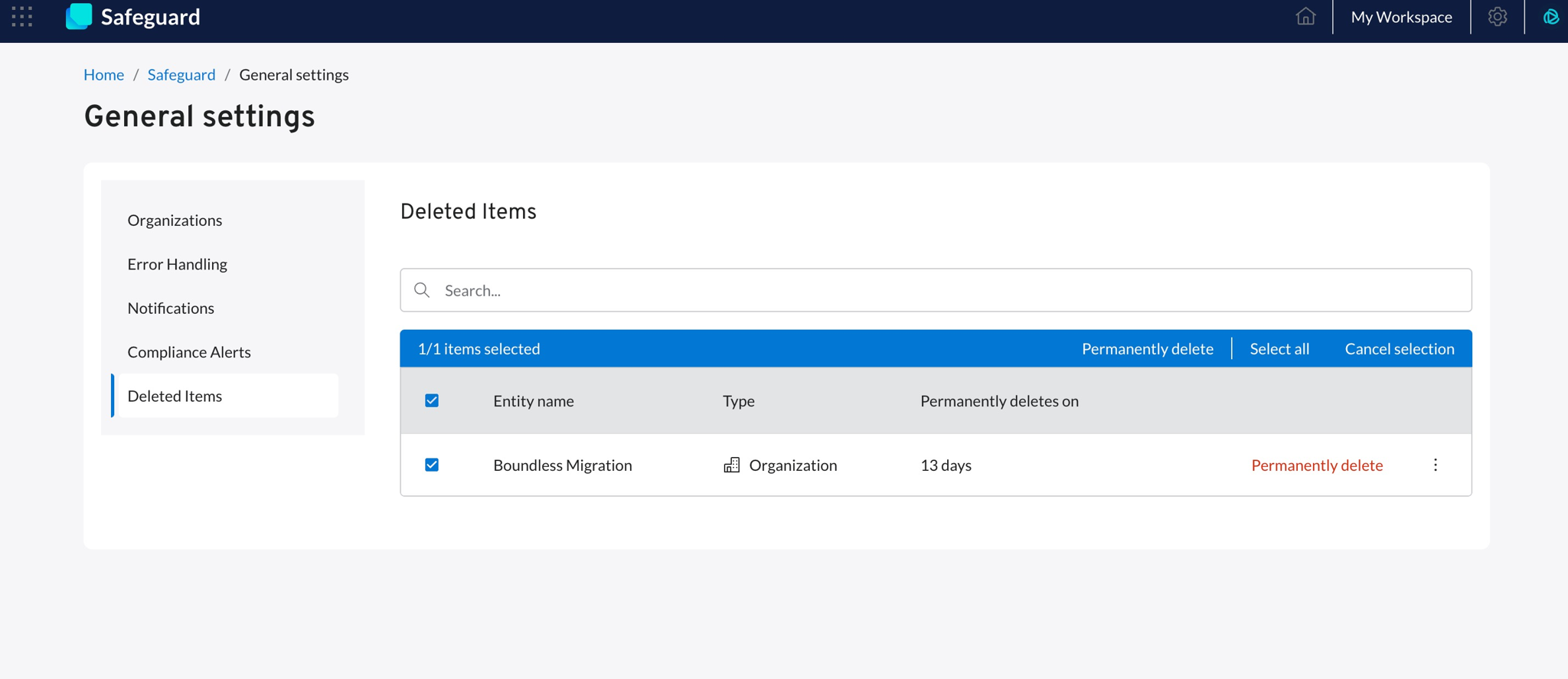
Step 1: Navigate to Deleted Items
- From your workspace, navigate to Safeguard
- Go to the Manage Settings page
- Click on the "Deleted Items" tab
- You'll see all organizations and entities currently in the "Pending Delete" state
Step 2: Select the Organization
- Locate the organization you want to permanently delete
- Click on the organization checkbox to select it
- Verify you've selected the correct organization by checking the name and details
Step 3: Initiate Permanent Deletion
- With the organization selected, click the "Permanently Delete" button
- A final confirmation modal will appear
Step 4: Confirm Permanent Deletion
To proceed:
- Read the warning carefully
- Type the required confirmation text
- Click the confirmation button to execute the permanent deletion
Step 5: Immediate Permanent Deletion
Once confirmed:
- The organization disappears from Safeguard
- This action cannot be undone
- You'll receive confirmation email that the organization has been permanently deleted
Reinstate an Organization During Grace Period
If you've removed an organization from Safeguard and changed your mind, you can reinstate it within 14 days. Reinstating an organization:
- Re-enables all networks and templates that were previously selected for backup
- Preserves all snapshots that haven't expired
- Resumes change detection, when available
Important: When Reinstatement Is Possible
You CAN Reinstate If:
- Organization status is PENDING DELETE
- Organization still exists in Meraki (connected and accessible)
- Organization is still connected to Boundless workspace via OAuth
- Less than 14 days have passed since removal
You CANNOT Reinstate If:
- Organization was deleted from Meraki (status: Not Found)
- Organization was disconnected from Boundless workspace
- More than 14 days have passed since removal (grace period expired)
Step-by-Step Guide
Step 1: Locate the Organization Marked for Deletion
- Find the organization card with "Pending Delete" status
- Look for visual indicators:
- "Pending Deletion" label or status
- Deletion scheduled date (e.g., "Deletion scheduled for: [date]")
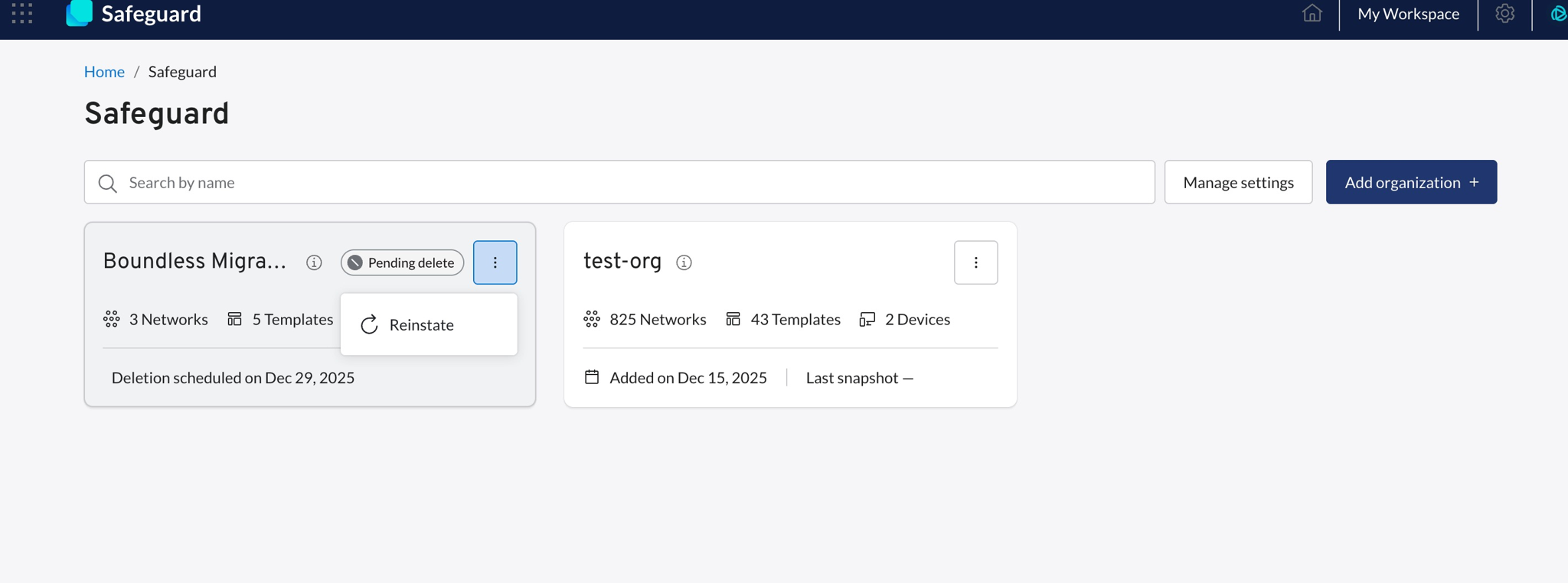
Step 2: Click the Reinstate Button
- On the organization card marked for deletion, click the three-dot icon (⋮) (actions menu)
- A dropdown menu will appear
- Select "Reinstate" from the menu
 Step 3: Review Confirmation Modal
A confirmation modal will appear with important information. The modal contains:
- Review all information in the confirmation modal
- Click "Reinstate" button to proceed
Best Practices
Before removing an organization from Safeguard:
1. Review Your Backup Data
- Navigate to the organization details page
- Review all snapshots, networks, and templates
- Verify you have alternative backups or no longer need this data
2. Download Critical Snapshots
- If you might need configuration data in the future, download important snapshots
- Export network and template configurations to local storage
- Copy activity logs for audit or compliance purposes
3. Notify Your Team
- Inform other administrators about the planned removal
- Ensure no one is relying on these backups for restoration or reference
- Coordinate with stakeholders who might need access to backup data
4. Document the Decision
- Record why the organization is being removed
- Note the deletion date for future reference
- Keep track of what was backed up in case questions arise later
5. Monitor the Grace Period
- Set a reminder to check if reinstatement is needed before the 14-day period expires
- Download any additional data during the grace period if needed
- Verify permanent deletion occurs as expected after 14 days
Next Steps
After removing an organization from Safeguard:
- Monitor deletion status: Check the organization card to see days remaining before permanent deletion.
- Download backup data: Export any snapshots or configurations you might need in the future.
- Reinstate if needed: Restore the organization within 14 days if you change your mind.
- Verify deletion: After 14 days, confirm the organization has been permanently removed from the dashboard.
Common Questions
Q: Can I cancel the deletion after removing an organization?
A: Yes! You have 14 days to reinstate the organization. Click the "Reinstate" button on the organization card to add back the organization to Safeguard.
Q: What happens to my snapshots when I remove an organization?
A: Snapshots are scheduled for deletion and remain accessible during the 14-day grace period. After 14 days, they are permanently deleted. If you reinstate the organization within 14 days, snapshots are preserved.
Q: Can I download my backup data after removing an organization?
A: Yes! Most recent snapshots remain accessible for download during the entire 14-day grace period. This gives you time to export important configurations.
Q: What if I remove an organization by mistake?
A: Don't worry! Simply reinstate the organization within 14 days by clicking the "Reinstate" button. All networks, templates, and existing snapshots will be fully restored.
Q: Can I remove individual networks instead of the entire organization?
A: Yes! You can remove individual networks from the organization's entity page. Individual networks also have a 14-day grace period and can be reinstated before permanent deletion.
Q: What does "Pending Delete" status mean?
A: "Pending Delete" means the organization is in the 14-day grace period. Backups have stopped, but all data remains accessible and the organization can be reinstated.
Q: What happens if the organization was deleted from Meraki?
A: If the organization no longer exists in Meraki (status: NOT FOUND), you cannot reinstate it in Safeguard. However, you still have 14 days to download the most recent backup data before permanent deletion.
