Before you start
Five minutes here saves half an hour later. Every item below has stopped an onboarding at least once.
- A Meraki admin with full organization access. Read-only or network-scoped admins cannot authorise the connection.
- You are logged into the Meraki dashboard in the same browser. The connection flow redirects you to Meraki, and stalls if you are not already signed in.
- An email address that can actually receive mail. We sign you in with a link sent to your inbox, so service accounts without a mailbox cannot be invited.
- The boundlessdigital.com domain allow-listed in your mail security. Mimecast, Proofpoint and similar tools quarantine or rewrite sign-in links. This is the single most common delay.
- A path through your proxy or SSE to the Boundless platform. Netskope, Zscaler and browser-isolation products block the sign-in redirect. Chrome without isolation works reliably.
- A rough count of your networks, devices and organizations. This sets your expected backup duration and your licence scope.
- A test or lab network, if you have one. Useful for validating restore before you rely on it in production.
Step 1: Sign in and invite your team
Safeguard runs on the Boundless Next Generation platform. If you also use Boundless Access Control, that product currently lives on our previous platform and uses a separate login, so expect two sets of credentials for now. The two platforms are being unified over time.
Signing in
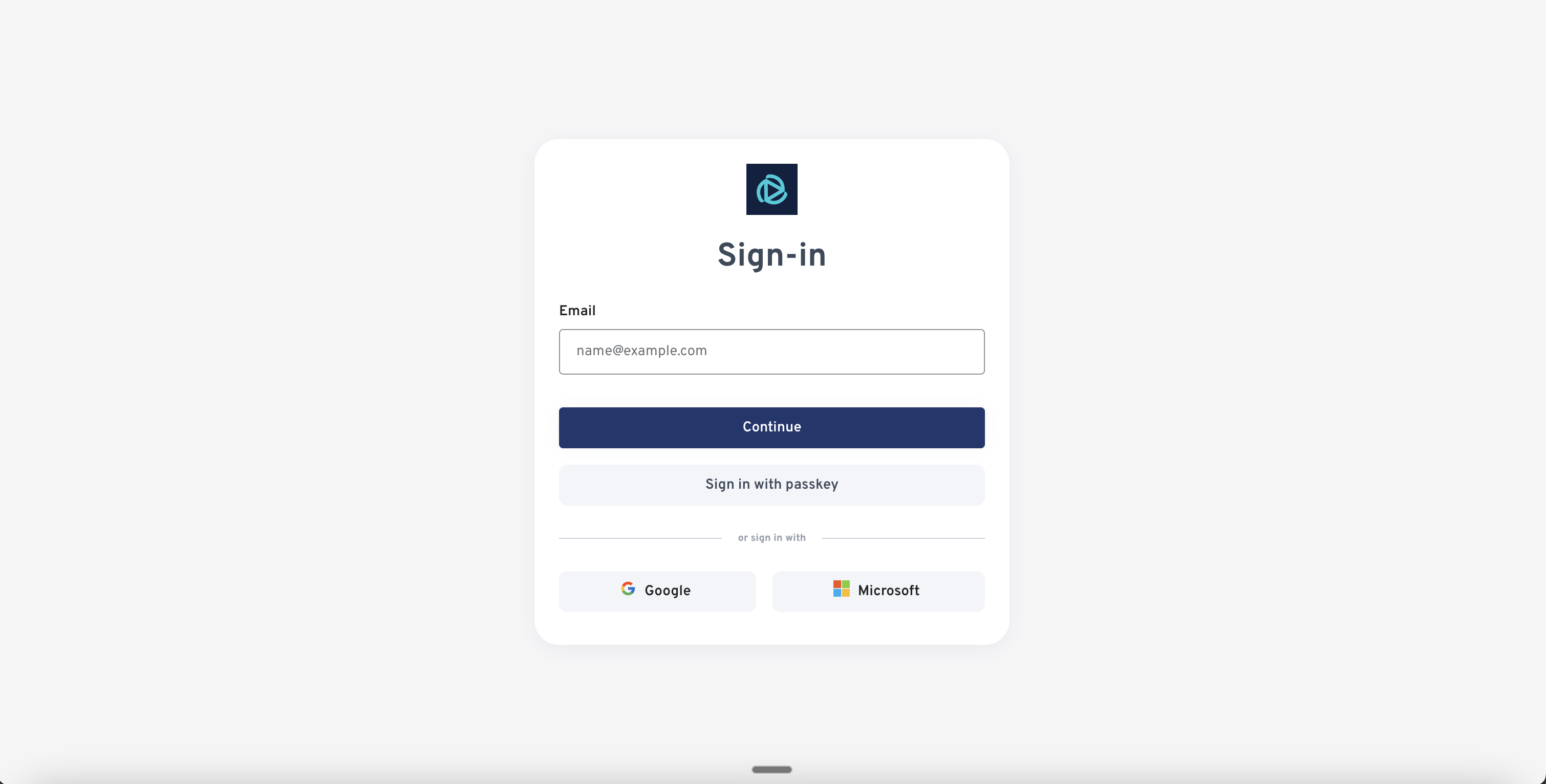
There is no password. You enter your email address, we send you a sign-in link, and clicking it logs you in. You can also sign in with a Google or Microsoft account. You will go through this each time you sign in. Multi-factor authentication is available and you can enable it yourself in your user settings.
A note on SAML: you may find a SAML SSO integration guide elsewhere in this Knowledge Base. That guide covers the legacy Boundless platform only and does not apply to the workspace Safeguard runs in. SAML for the new platform is in development, and we will email all users when it is live. If your security policy requires SSO before a wider rollout, onboard a small group first and expand once SAML ships.
Inviting your team
Go to Settings, then Users, and invite by email address. There are two roles:
- Owner. Can do everything, including adding and removing organizations and entities.
- User. Can run backups, view snapshots and run restores, but cannot add or remove organizations and entities.
While you are evaluating, give everyone the Owner role. Finer-grained role controls are on the roadmap.
Step 2: Connect your Meraki organization
Safeguard connects through Meraki's OAuth integration. There is no API key to generate, store or rotate. Three things follow from that:
- The connection is to the organization, not to your account. If the admin who authorised it leaves the company, the connection stays live.
- Only an admin with full organization access can authorise it.
- You can see and revoke it at any time in Meraki under Organization, Configure, Integrations, My integrations, which also shows which admin authorised it.
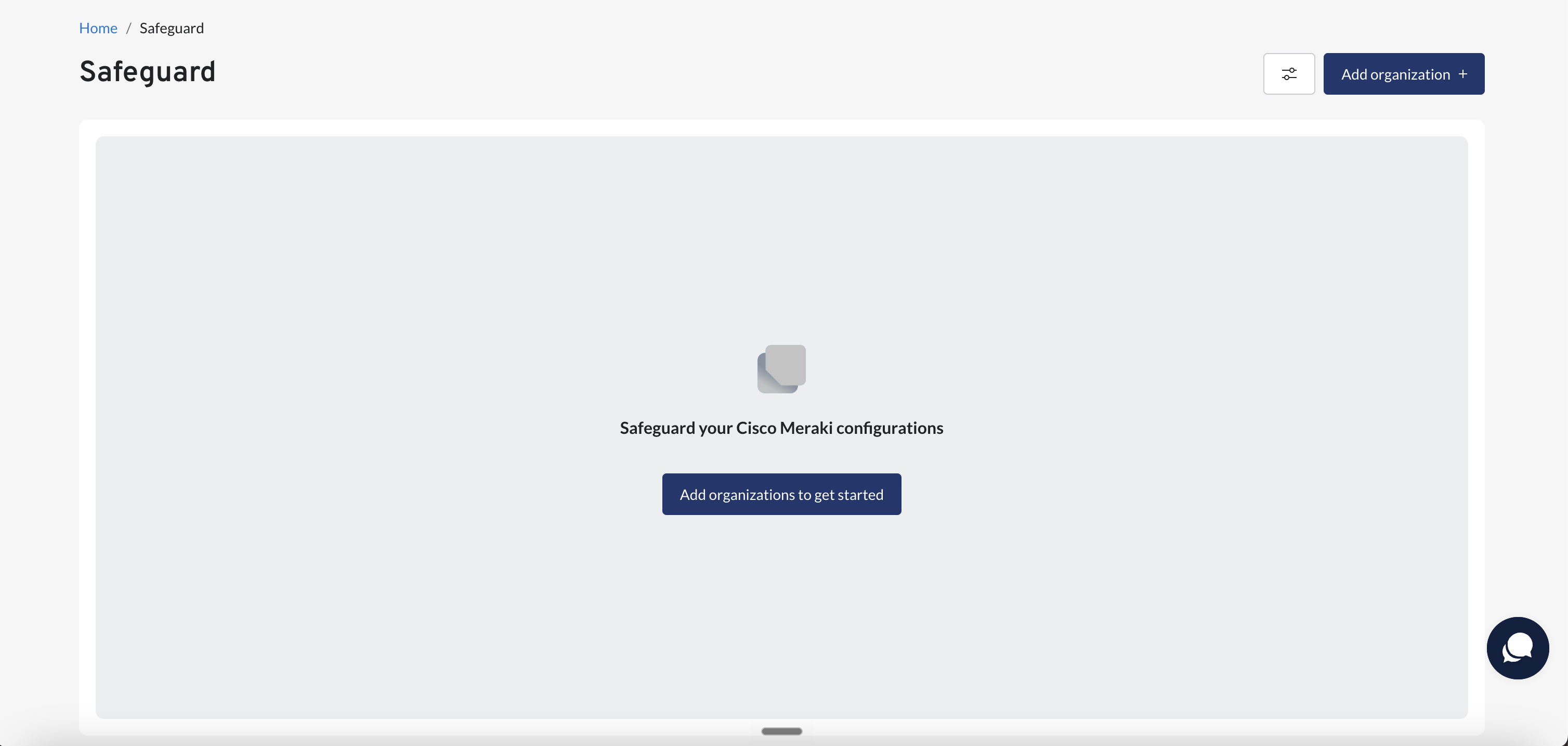
There are two steps, and they are deliberately separate.
- Connect the org to Boundless. Click Add organization, you are redirected to Meraki, choose the organization and allow access. If the org does not appear straight away, refresh the page.
- Add the org to Safeguard. The first step makes the organization available to the whole platform. The second puts it under Safeguard specifically, so you can run different Boundless products against different organizations.
Two things to know before you connect
We enable Early Access API on your organization. If it is not already on, connecting turns it on. This is what lets us cover the widest possible set of configuration endpoints. It is a real change to your Meraki org, so we tell you before it happens.
Disconnect in the right order. If you ever remove an organization, remove it from Safeguard first, then from Boundless. Doing it the other way round leaves orphaned entities and generates error notifications.
One regional caveat: Meraki OAuth is not available in every Meraki cloud region. If your organization is hosted in a region where it is unsupported, tell us and we will confirm your options before you start.
Keeping the connection healthy
Each connected organization shows one of four statuses on the Organizations page. It is worth knowing what they mean before one of them surprises you.
- Connected. Working normally. Nothing to do.
- Restricted. Something is blocking access, usually an IP allow-list or a licensing issue. Update your Meraki allow-list, or contact us.
- Expiring soon. The authorization is approaching 90 days of inactivity. Click Refresh to renew it.
- Expired. The authorization has lapsed and Safeguard can no longer read your data. Click Reconnect and re-authorise.
The authorization expires after 90 days of inactivity. Organizations that are actively being backed up will not reach that, but a rarely touched org can, so check the status page occasionally.
Step 3: Choose what to back up
After adding the organization to Safeguard you pick which networks to include. You can select all of them, a subset, or filter by Meraki tag, which is the practical option for large estates. Three things are always included:
- Organization-level settings, backed up automatically.
- All templates. You cannot deselect these. If a network is bound to a template and that template is not backed up, the network's configuration is incomplete, so we always take both.
- Devices, captured inside the network they belong to rather than as separate items.
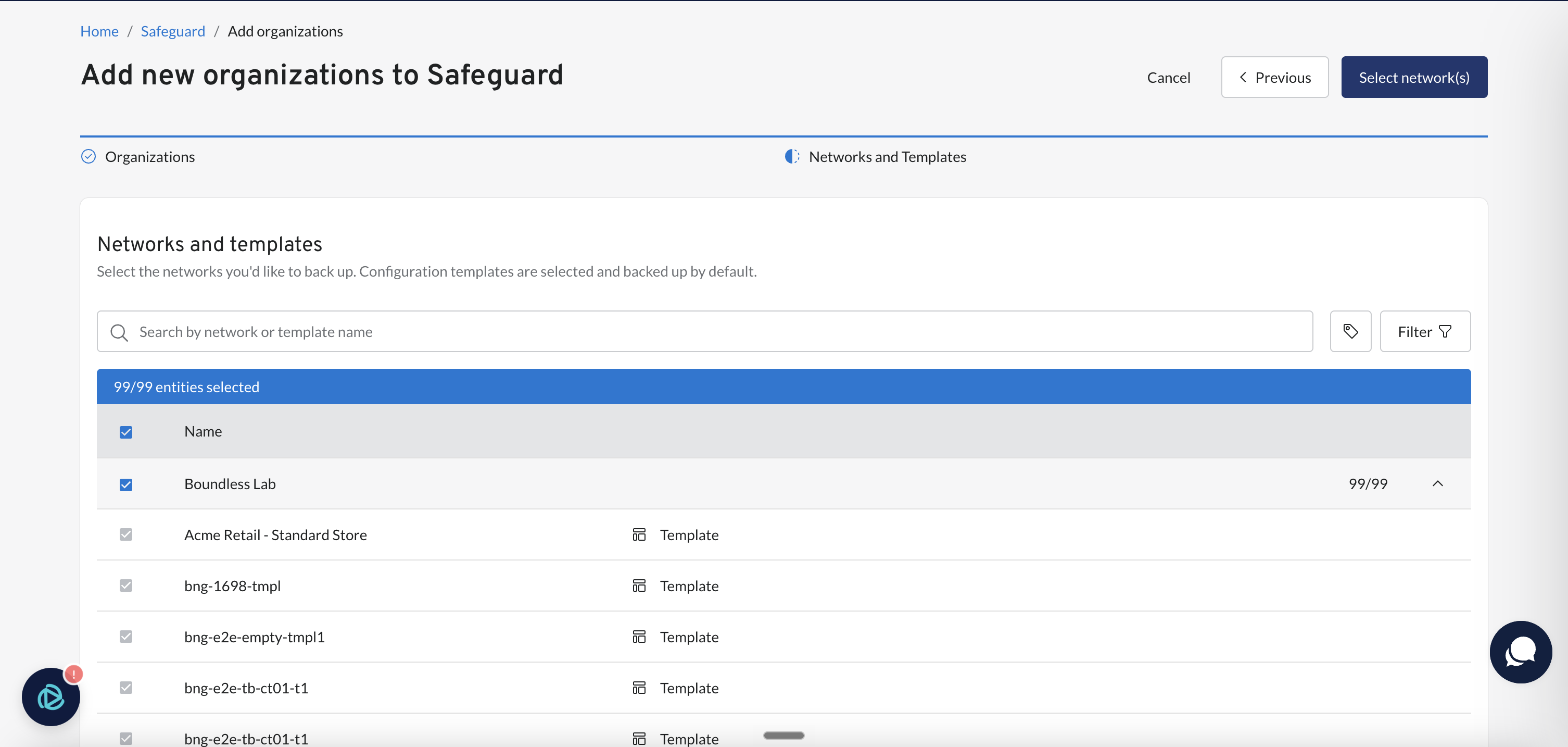
If you have hundreds or thousands of networks, start with a handful plus the templates, confirm the data looks right, then add the rest. You can add networks at any time.
By default, new networks detected in your organization are added to Safeguard automatically. If you are working to a fixed licence count, switch the connection method to Manual in Settings so you decide what gets added. New templates are still added automatically either way.
Step 4: Your first backup
Confirm your selection and the first backup starts. It runs in a fixed order: organization settings first, then templates, then networks alphabetically, with each network's devices captured inside it.
Meraki enforces an API rate limit of 10 requests per second, shared across everything hitting your organization. Safeguard stays inside that limit deliberately, which means the first full backup is paced rather than instant. As a rough guide:
- A single network with no devices takes under a minute.
- Around 20 networks takes a few minutes.
- Around 40 networks with devices takes three to five hours.
- Several hundred networks takes many hours, and several thousand takes a day or more.
This happens once. After the first backup, everything is incremental and you should never notice it again.
If you run your own API automation, avoid scheduling a heavy job against the same organization while a large first backup is running. You and Safeguard share the same 10 requests per second, and one of you will start seeing failures. You can watch consumption in Meraki under Organization, then API.
How change detection works
There is no backup schedule to configure, because Safeguard does not work on a schedule. It watches your Meraki changelog and reacts.
- Every 60 seconds, Safeguard reads your Meraki changelog.
- When a change appears, it identifies which entity was touched.
- It snapshots that entity in full, not just the setting that moved, because the changelog does not say which setting changed.
- The snapshot is retained for 365 days.
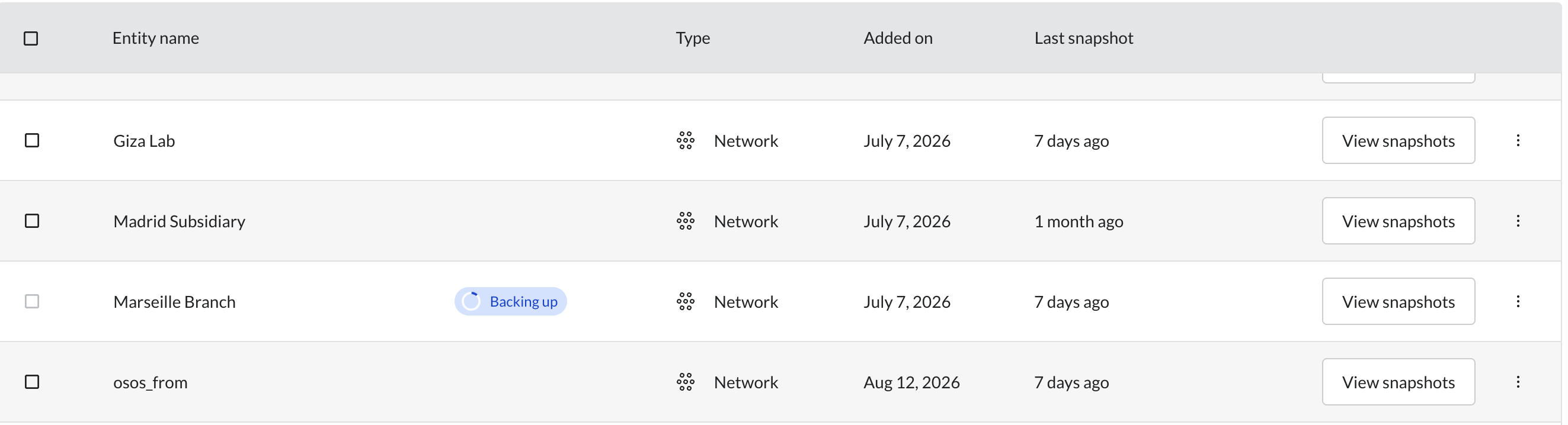
An entity is one of three things: your organization-level settings, a template, or a network including all the devices in it. Snapshots are taken per entity, which is why a change at one site does not disturb the rest of your estate. You can also trigger a backup manually at any time.
Each snapshot carries the admin or admins recorded in the Meraki changelog for that minute, or is marked as initiated by Safeguard. If several people changed the same entity inside the same minute, all of them are listed and the changelog view shows who did what.
Step 5: Read a snapshot
Open an entity and you get its snapshot history on the left and the selected snapshot on the right. Each snapshot has three views.
- Full backup shows every captured setting, grouped by Meraki category. Use it for audit evidence, checking a value, or rebuilding by hand.
- Change log shows the difference against the previous snapshot. Use it to answer what actually changed at 14:32.
- Compare puts any two snapshots side by side. Use it to spot drift between two points in time.
Use the Explorer to work the other way round: filter by a specific setting and a date range to find when something changed and who changed it. This is usually faster than reading the Meraki changelog directly.
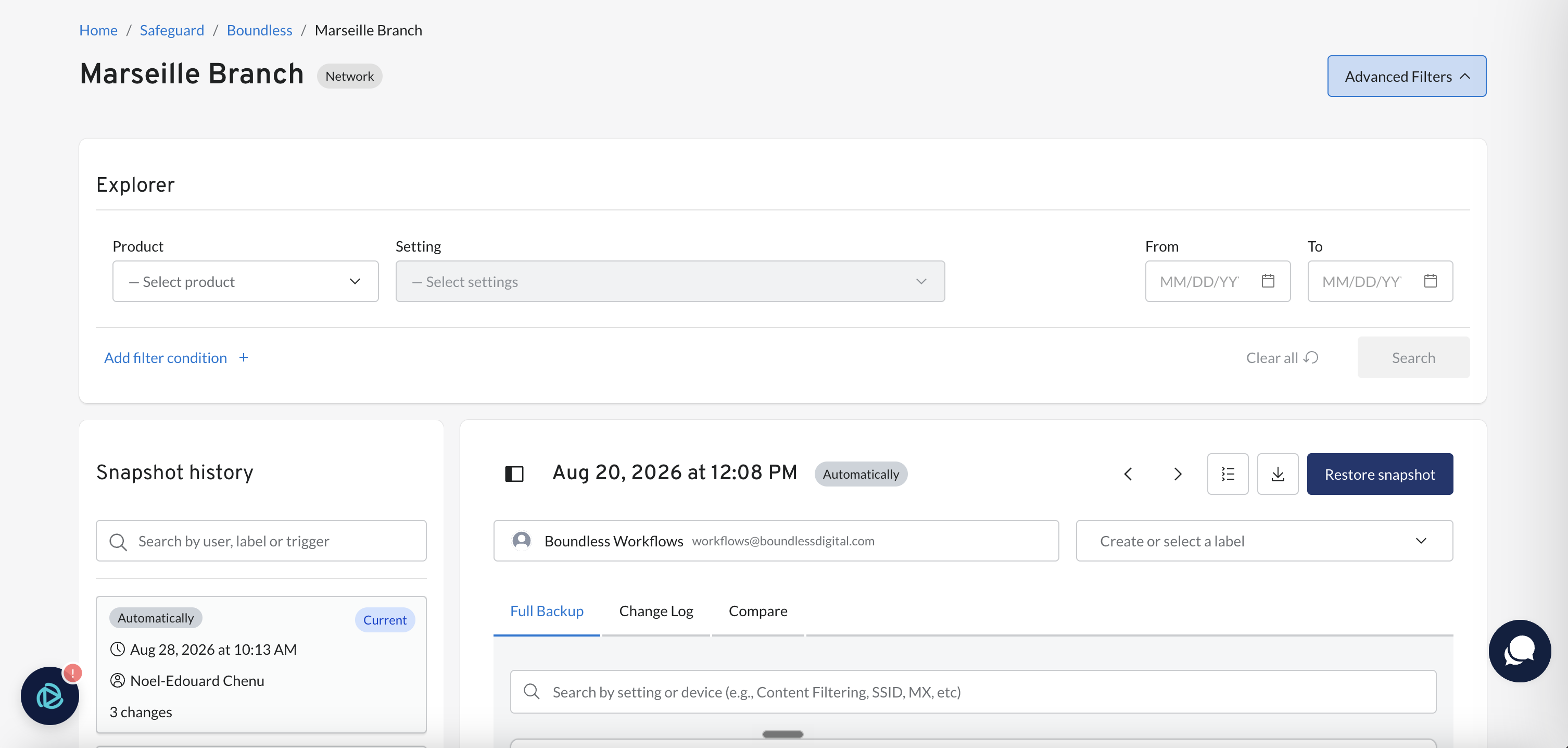
You can copy any individual value to the clipboard, and download a whole snapshot as JSON. The JSON download is what most teams use for audit evidence and for offline retention beyond the platform's 365 days.
A word on coverage
Safeguard captures what Meraki exposes through its API. A small number of settings have no API endpoint at all. When one of those changes, you will see the change appear from the changelog, but the setting itself will not be captured and it will show in the raw JSON rather than as a structured field. Every endpoint we support is listed by product category in the Safeguard API Coverage Documentation article. We deliberately exclude beta endpoints and any endpoint that has not proven stable, and we add coverage as Meraki releases it.
Step 6: Restore a configuration
Rollback is not the same as restore. To undo a change, restore the snapshot before it, not the snapshot that recorded it. The snapshot that recorded the change contains the change. This trips up almost everyone once.
- Pre-validation. Safeguard checks the target still exists and that nothing it depends on has been removed. A firewall rule that references a deleted policy object, for example, is flagged before anything is pushed.
- Choose the scope. Restore everything in the snapshot, or select individual settings. Settings marked in sync match your live config and are skipped.
- Choose the devices. On a network you can restore the network layer, the device layer, or both, and pick individual devices and settings.
- Review and execute. You see a summary of exactly what will be pushed before it happens. Once complete, a new snapshot appears tagged as restored.
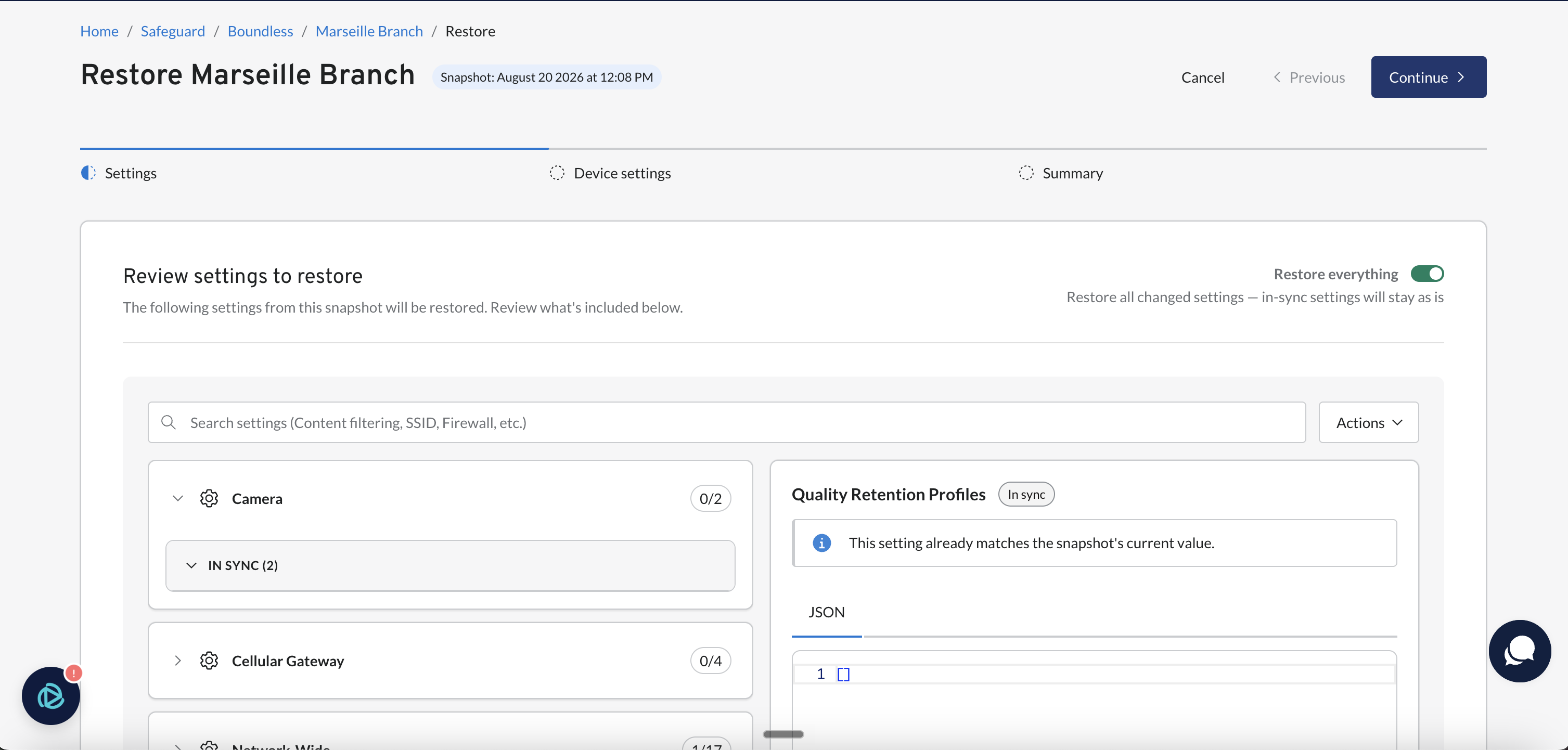
Restore limits worth knowing before you need them
- You cannot restore the most recent snapshot. It is your current state, so there is nothing to push.
- A deleted organization cannot be recovered. Networks and templates can. Organizations cannot.
- A network bound to a template rolls back at the template. If you need to roll one bound site back on its own, unbind it first.
- Some settings are readable but not writable through the Meraki API. Those are backed up and shown to you, but must be re-applied by hand from the JSON. Pre-validation tells you which ones before you commit.
- Replacing failed hardware means removing the old device from the network first. The replacement cannot take the old device's configuration while the old device is still present.
We recommend running one restore on a lab or non-critical network in your first two weeks, before you need it under pressure. It takes ten minutes and it is the only way to know the workflow.
Step 7: Set up compliance alerts
Alerts are how Safeguard stops being a backup tool and starts being something you use daily. A rule watches specific settings, on specific parts of your estate, changed by specific people.
- Pick the settings to watch, such as layer 3 and layer 7 firewall rules, SSIDs or content filtering.
- Pick the targets: every network and template, or a chosen subset.
- Pick who triggers it: any admin, a named list, or the inverse, meaning anyone who is not on your list. That last option is how most teams watch contractors, managed service providers and site staff.
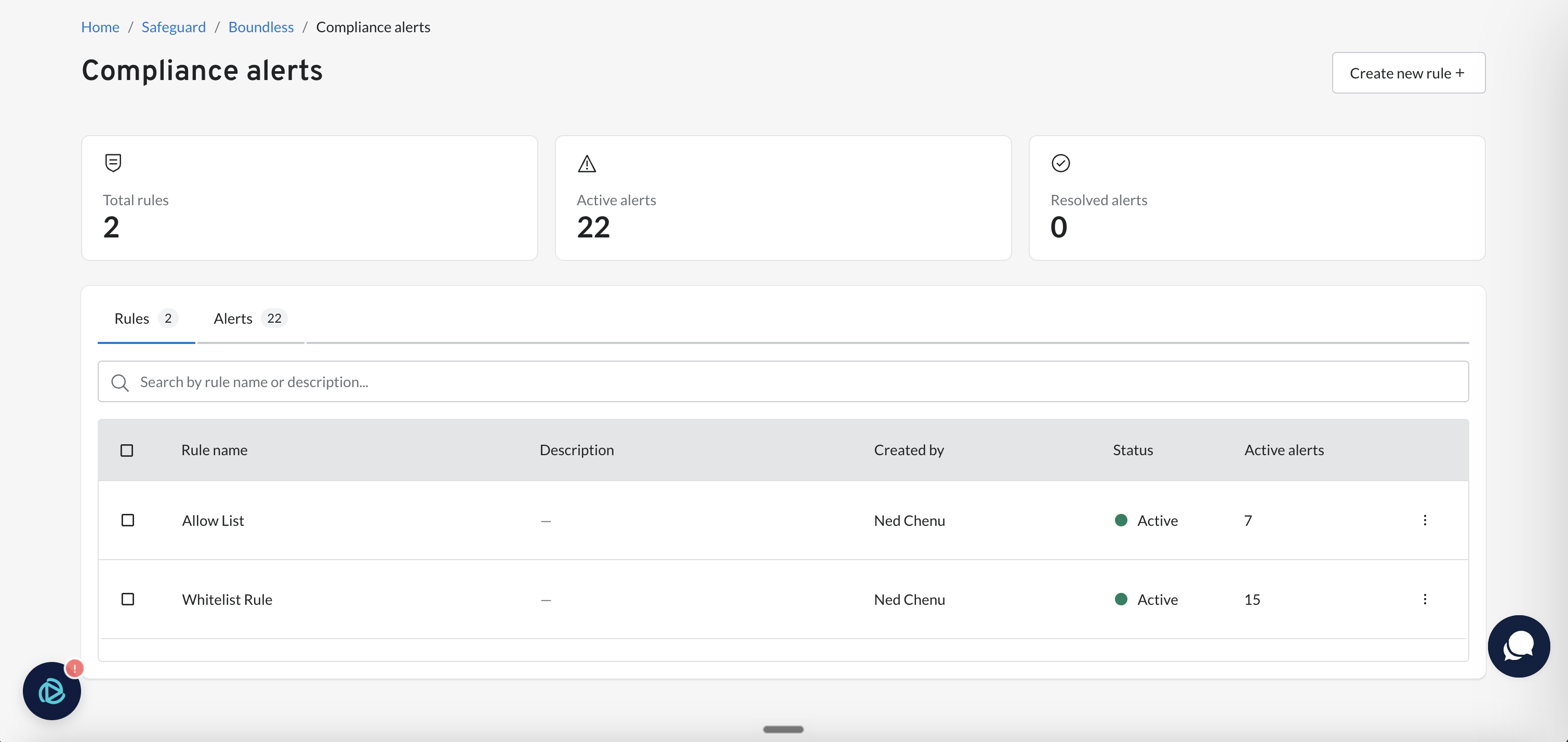
Use the preview before you save. As you build a rule, a panel shows how many alerts it would have fired in the last 30 days against your real change history. If it says four hundred, widen your filters. If it says zero, you have scoped it too tightly. Tune it there rather than in your inbox.
Alerts are evaluated when a snapshot completes, so they follow the same one-minute rhythm as change detection. Delivery is set globally in Settings, not per rule: choose immediate, a daily summary, or a weekly summary, and choose who receives them. Many teams send firewall and security rules to a small group immediately and everything else to a weekly digest.
Settings to set on day one
Open the settings panel from the Safeguard home page, next to Add organization. Four things are worth deciding now rather than later.
- Connection method. Defaults to Automatic. Change it to Manual if you are working to a fixed licence count and want to control what gets added.
- Alert recipients. Not set by default. Always decide who gets alerts before you build rules.
- Alert cadence. Not set by default. Choose immediate, daily or weekly.
- Notifications. On by default. Turn them down if you add and remove networks often and do not want a notice for each one.
Deleted items also lives here. When you remove an organization or an entity it goes into a 14-day queue rather than disappearing, so an accidental removal is recoverable. If you genuinely want the data gone, you can delete it permanently from that queue.
Limits worth knowing
We would rather you read these now than discover them during an incident.
- Snapshot retention is 365 days, then automatic deletion. Download JSON if you need longer.
- Deleted items sit in the queue for 14 days before permanent deletion.
- The Meraki API rate limit is 10 requests per second, shared with everything else hitting your org.
- Backups are triggered automatically on detected change, plus manually on demand. There is no fixed schedule.
- Snapshots capture the whole entity, not the individual setting, because the Meraki changelog does not identify which setting moved.
- Coverage is limited to settings exposed by a stable Meraki API endpoint. The coverage list is published and grows.
- Some settings are readable but not writable via API, so they are backed up but re-applied manually.
- Deleted organizations are not recoverable. Networks and templates are.
- Template-bound networks roll back at the template, not the individual network.
- Templates are always backed up and cannot be deselected.
- Early Access API is enabled on your organization when you connect, if it is not already on.
- Authentication is a sign-in link or Google and Microsoft sign-in, plus optional MFA. SAML is in development for this platform.
- The Meraki authorization expires after 90 days of inactivity. Refresh or reconnect from the Organizations page.
- Meraki OAuth is not supported in every Meraki cloud region.
Your first month
A sensible pace if you are running an evaluation or a phased rollout.
- Day 1. Sign in, invite your team, connect one organization, select a starting set of networks, start the first backup. Set your alert recipients and cadence while it runs.
- Days 2 to 5. Make a deliberate change in Meraki and confirm it appears as a snapshot within a minute or two. Open the change log and check the diff shows what you expect. This is your proof the pipeline works.
- Week 2. Build two or three compliance alert rules using the 30-day preview to tune them. Run one restore on a lab or non-critical network. Download a snapshot as JSON and confirm it is usable as audit evidence.
- Weeks 3 to 4. Add your remaining networks and organizations. Review which settings show as uncovered and tell us which ones matter to you. Decide whether automatic or manual network addition suits your licensing.
- Month 2 onwards. Fold alerts into your change process. Most teams end up using the change log and Explorer during incident triage more than they use restore.
Common questions
What happens if the person who set this up leaves?
Nothing. The connection is to your Meraki organization, not to an individual account, and it is not an API key tied to a user. It survives their departure. This is the main reason we use Meraki OAuth rather than API keys.
Can Safeguard change anything in our environment?
It reads. The only write is a restore, and only your team can trigger one. The exception we flag up front is Early Access API, which we enable on your organization at connection time so we can cover as many endpoints as possible.
Can we schedule backups?
There is no schedule to set, by design. Safeguard reacts to changes within about a minute rather than backing up on a timer, so you never have a window where a change is unprotected. You can also trigger a manual backup whenever you want.
Why isn't a particular setting backed up?
Because Meraki does not expose it through a stable API endpoint. We cannot read what Meraki does not publish. The full coverage list is documented, we add endpoints as Meraki ships them, and we will tell you when yours arrives. If a specific setting matters to you, say so and we will raise it.
How long do you keep our snapshots?
365 days, after which they are deleted automatically. If you need longer retention for compliance, download snapshots as JSON and store them wherever you keep your evidence.
Can the connection stop working on its own?
The authorization expires after 90 days of inactivity, and an organization that is actively being backed up will not reach that. We warn you on the Organizations page before it happens, with an Expiring soon status and a Refresh button. If it does lapse, Reconnect restores it. The other status worth watching is Restricted, which usually means an IP allow-list or licensing change on the Meraki side is blocking us.
Will this interfere with our own API automation?
Only if you run something heavy at the same time as a large first backup, since you and Safeguard share the same Meraki limit of 10 requests per second. Once the first backup is done, ongoing consumption is one changelog read per minute plus a snapshot when something actually changes.
Can we get the data out?
Yes. Any individual value can be copied, and any snapshot can be downloaded in full as JSON. There is no re-import path, so a downloaded snapshot is for audit and reference rather than for reloading into the platform.
Getting help
- The chat widget in the platform is fastest for anything specific to your environment. It reaches our team directly.
- The rest of this Knowledge Base holds the detailed product guides, including the Safeguard API Coverage Documentation.
- Email support@boundlessdigital.com for anything that needs a written trail, or anything commercial.
If something in the product does not work the way this guide describes, tell us. It usually means we shipped a change and the guide has not caught up, and we would rather hear it from you than not. There is also a feature request form in the platform. If you hit a gap, use it. It is how we prioritise.
