Safeguard is currently in pre-release status. As we continue to refine and enhance this product, you may notice occasional unexpected behavior or variations in performance. Your feedback during this pre-release phase is invaluable — please share any issues or suggestions with our support team to help us deliver the best possible experience for general availability.
Overview
By adding your organizations to Safeguard, you ensure that critical Meraki configurations are securely backed up.
This guide walks you through the process of selecting organizations, networks and templates, and initiating your first backup.
Before You Begin
Before adding organizations to Safeguard, make sure you have:
- An active workspace
- Owner role in your workspace
- An active Boundless subscription plan
- Connected organizations: Your Meraki organizations must already be connected to your workspace through OAuth (you'll see them listed in the Organizations page with a “Connected” status)
Step-by-Step Guide
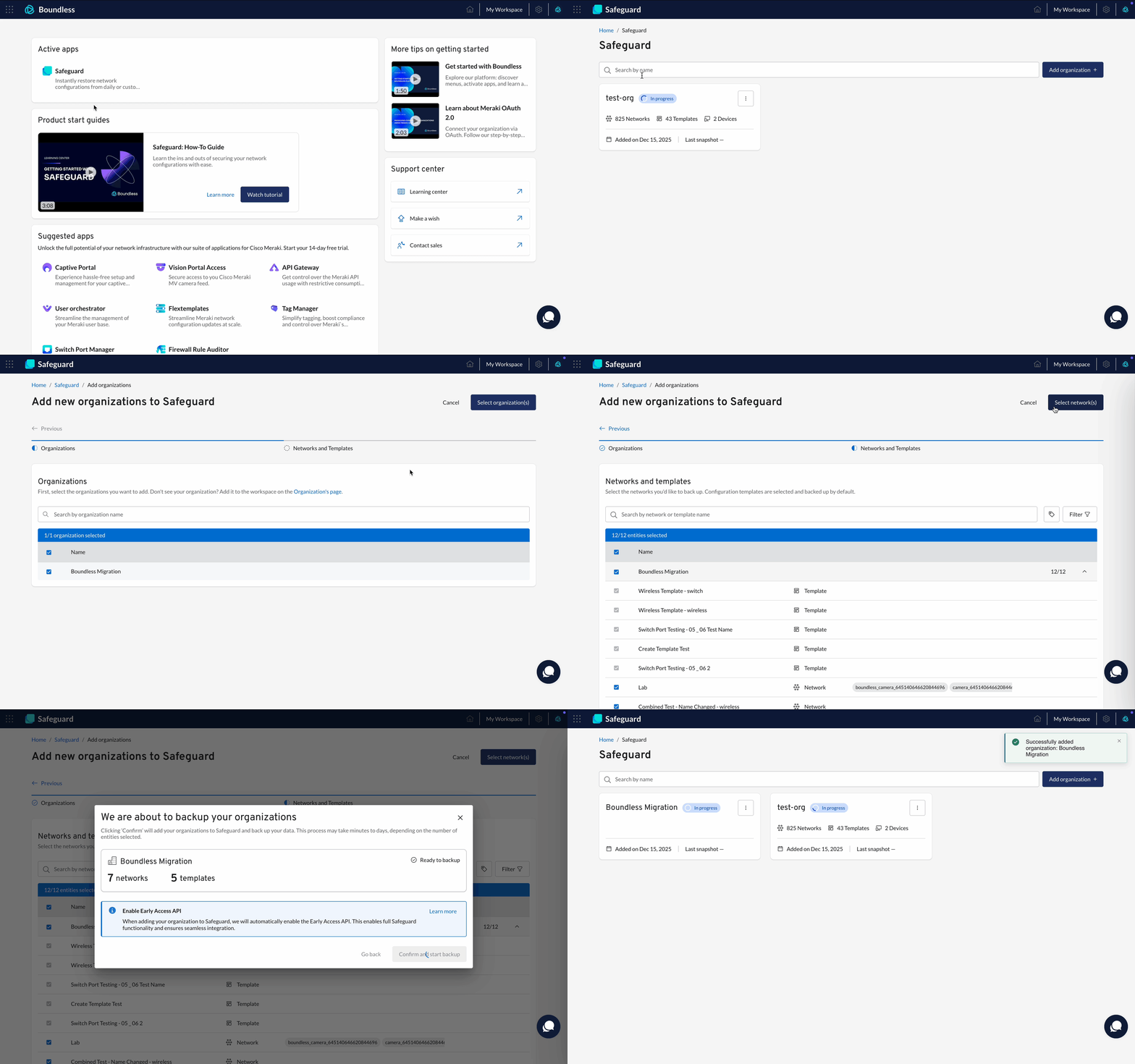
Step 1: Start the "Add Organization" Workflow
- Log in to your workspace and navigate to Safeguard
- Click the "Add organization" button
- The "Add organization" workflow will open, showing you a list of available organizations
You should see a list of all Meraki organizations that are already connected to your workspace through OAuth.
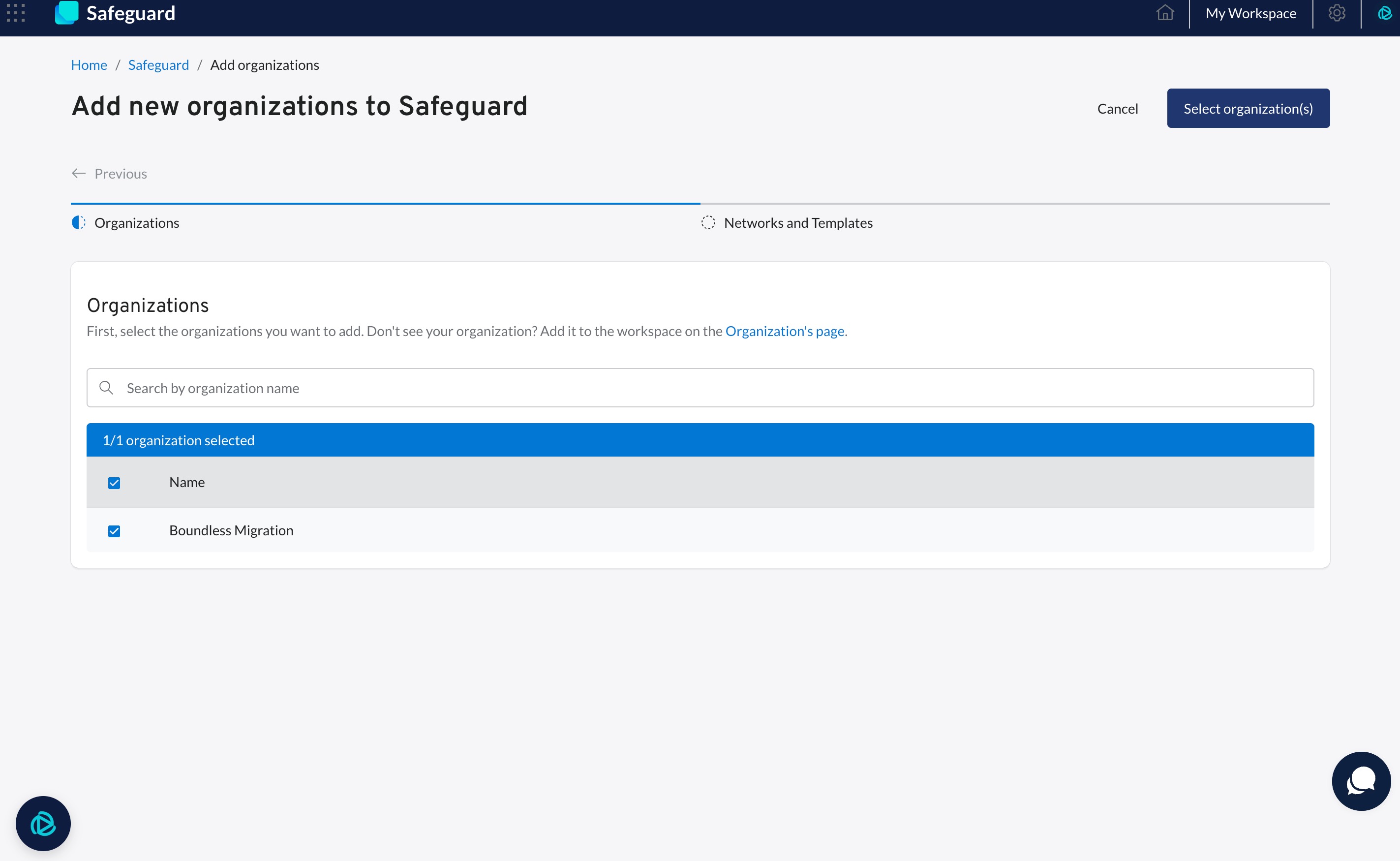
Step 2: Select Your Organizations
- Browse through the list of available organizations
- Use the search bar at the top to quickly find organizations by name (especially helpful if you have many organizations connected to your workspace)
- Click on one or more organizations to select them
- Once you've selected all the organizations you want to back up, click "Select organization" to continue
Step 3: Select Networks and Templates
After selecting your organizations, you'll see the "Select networks and templates" page. This is where you choose exactly what gets backed up.
The page shows all available networks and templates from the organizations you selected in Step 2. They're organized in a specific order:
- Templates appear first (in alphabetical order)
- Networks appear second (in alphabetical order)
- Each network shows its associated tags (if any)
Default Selections
When you arrive at this page, you'll notice that:
- ✅ All templates are already selected (and cannot be unselected)
- ✅ Networks are also selected by default (but you can unselect them and manually choose which ones to back up)
Selecting Networks
You have three flexible ways to select networks for backup:
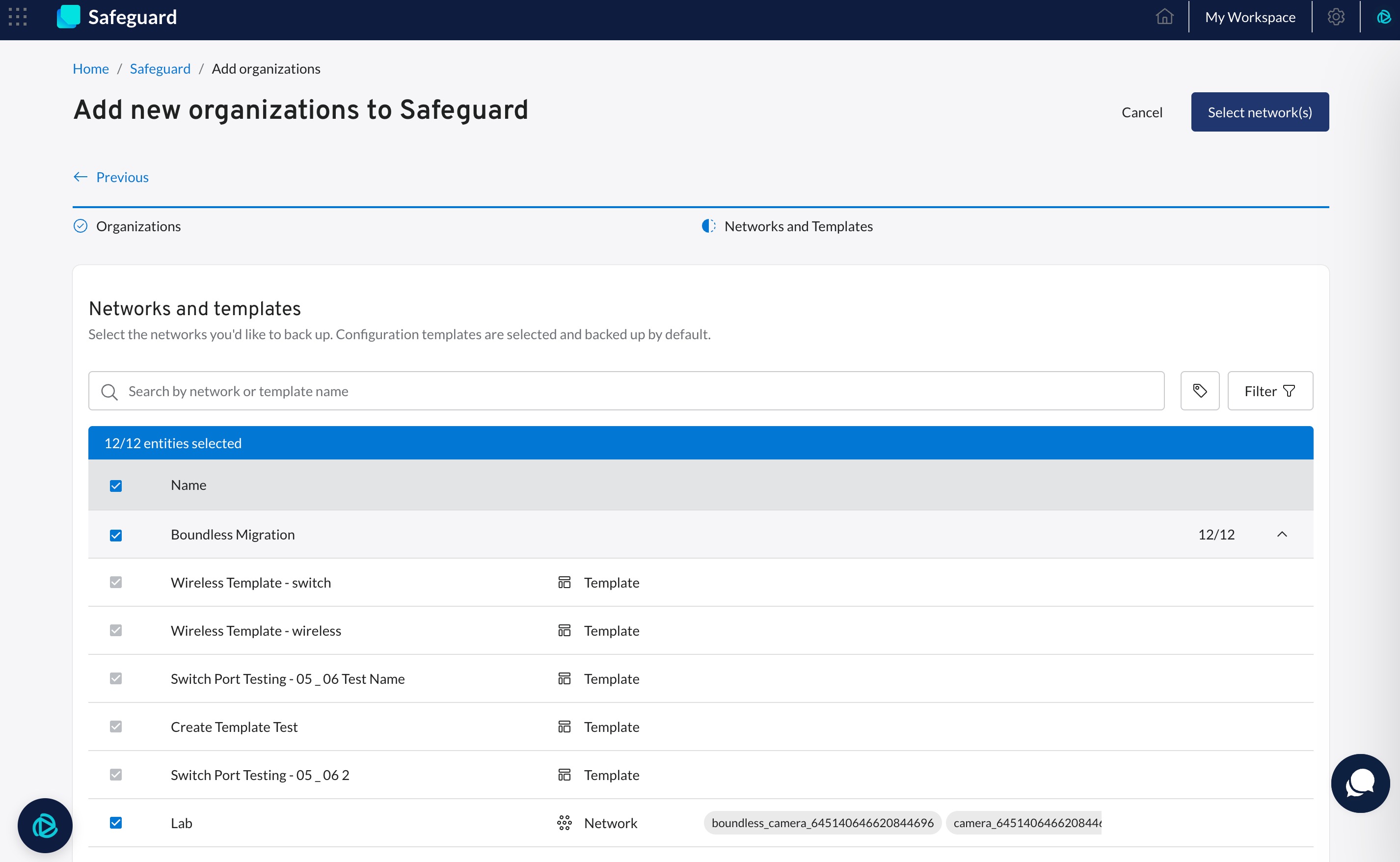
Option 1: Select Networks Individually
- Simply click the checkbox next to each network you want to back up
- Great for when you only need to back up a few specific networks
Option 2: Select All Networks in Bulk
- Use the "Select All" option (or checkbox) for an entire organization
- Perfect for backing up everything from one organization
Option 3: Select Networks by Tag
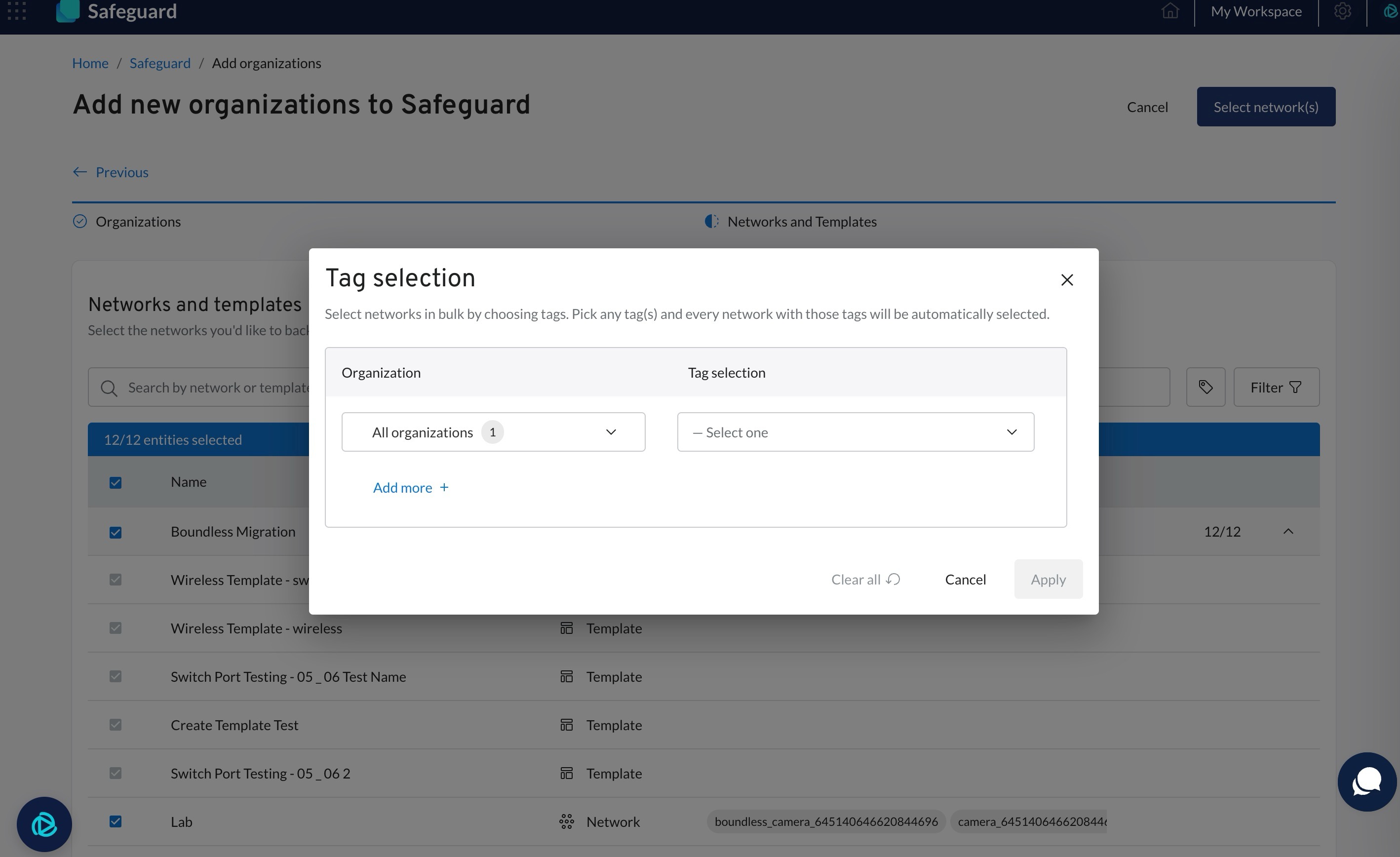
- Click the Tag icon in the toolbar
- A modal will open where you can select networks based on their tags
- This is the fastest way to back up groups of related networks
How to Select Networks by Tag:
- Click the Tag icon in the toolbar
- In the modal that opens, use the first dropdown to select the Scope:
- A specific organization - to see tags from just that organization
- All organizations - to see tags across all selected organizations
- Use the second dropdown to select a tag
- When you select a tag, all networks with that tag (within your chosen scope) are automatically selected
- Close the modal to return to the main list
- You'll see all the networks you selected via tags are now checked. If you want to uncheck them, go back to the Tag modal and remove that option.
Using Filters and Search
To help you find specific networks or templates, especially in large organizations, you have powerful filtering and search options:
Filter by Entity Type:
- Click the Filter button to open the filter drawer
- Choose what you want to see:
- Network - shows only networks
- Template - shows only templates
- All - shows both (this is the default)
- Apply the filter
Filter by Tags:
- In the filter drawer, you can also filter by specific tags
- This shows only networks that have the selected tag
Note: Filtering by tags only changes what you see - it doesn't automatically select those networks.
Search by Name:
- Use the search bar to filter the list by network or template name
- Great for quickly finding a specific network when you know its name
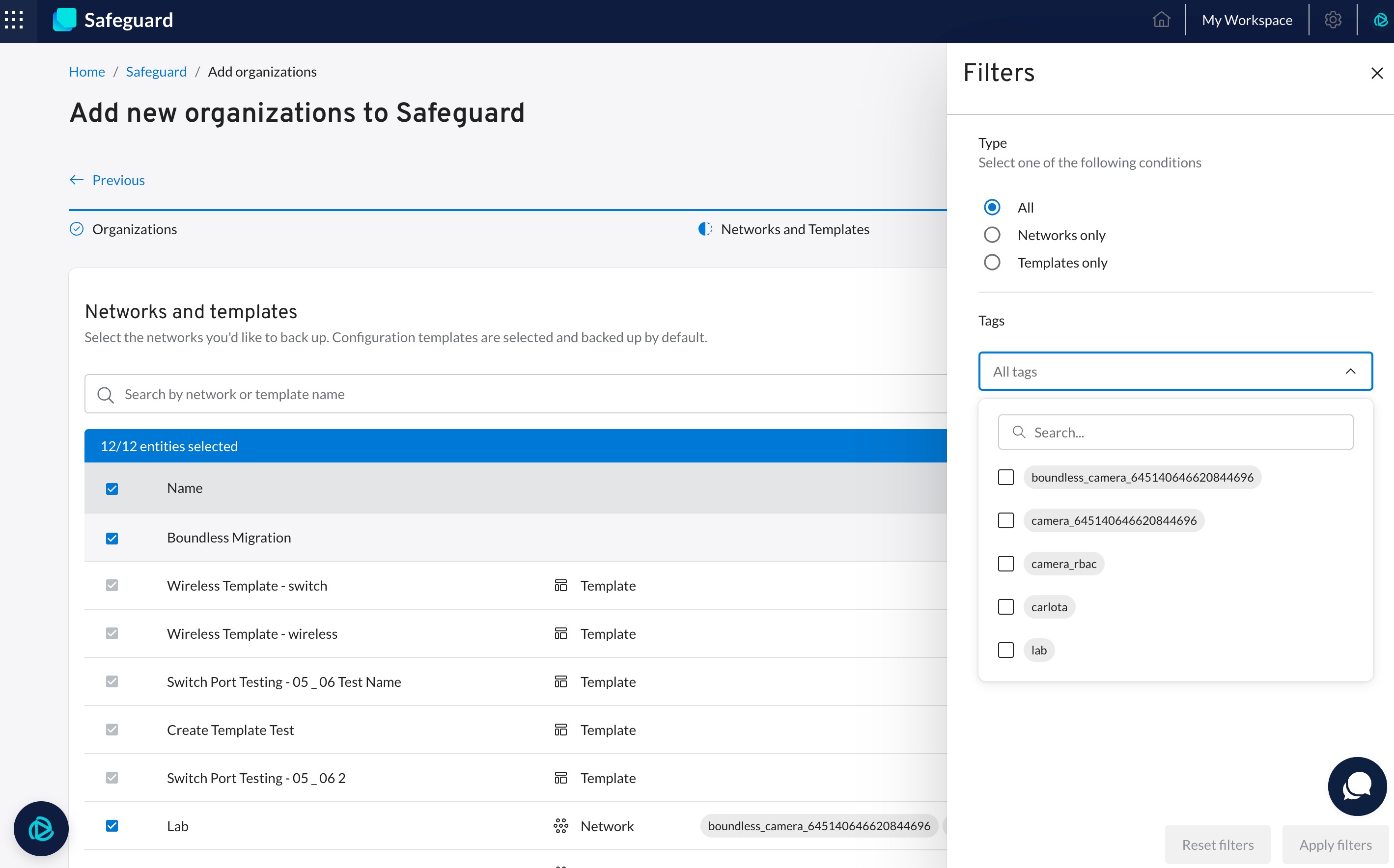
Filters only control what you see on the screen - they don't automatically select or deselect anything. Your previous selections remain in place even when you change filters.
Step 4: Review and Confirm
Once you've selected all the networks and templates you want to back up:
- Click the "Confirm and add organization" button to start the backup. This will immediately trigger the backup process for selected organizations.
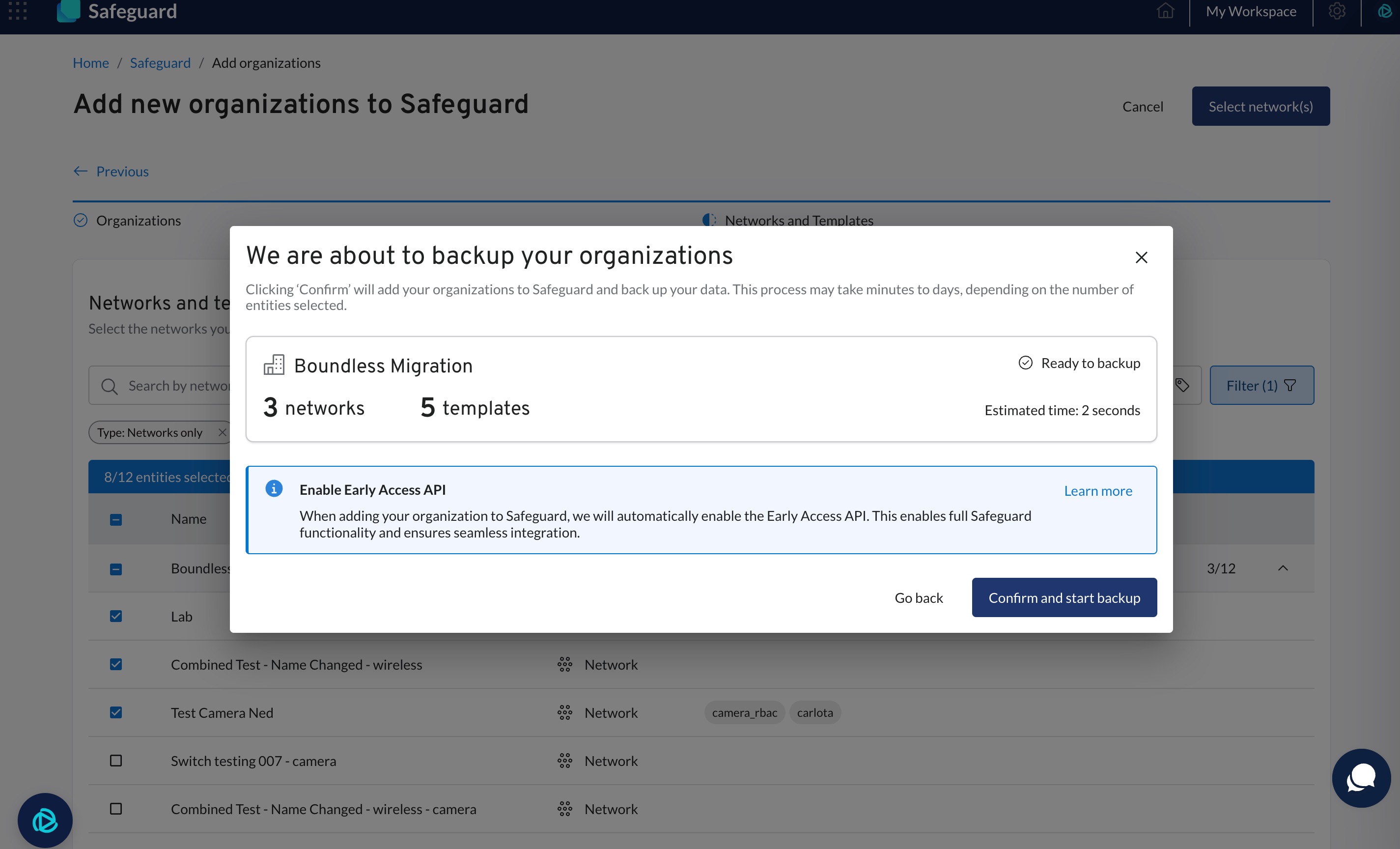
A confirmation modal will appear showing you a summary of everything that is being backed up:
- Organization names: All organizations being added to Safeguard
- Template count: Total number of templates (all templates from selected organizations)
- Network count: Total number of networks you selected
- Estimated backup time: How long the backup process will take
What happens next:
The backup process begins immediately and runs in the background. You'll typically receive a notification when the backup is complete (unless you have opted-out). You can continue working in the platform while the backup runs.
Congratulations! You've successfully added organizations to Safeguard and initiated your first backup.
What Gets Backed Up
When you add an organization to Safeguard, the following are automatically backed up:
- ✅ Organization-level configurations* (SAML settings, admin users, API access, etc.)
- ✅ All templates* from the selected organizations
- ✅ All networks* you selected and its devices
Safeguard can only back up configuration settings that are available through the Meraki Dashboard API. Any settings that are not accessible via a valid API endpoint cannot be backed up. This means some legacy settings, beta features, or UI-only configurations may not be included in your backups.
See the full list of covered endpoints in our API Coverage Documentation to understand exactly which configurations are included in your backups.
Next Steps
Now that your organization is added on Safeguard, you might want to:
- Review your backup status: Check the Safeguard dashboard to see when your backup completed.
- Add more organizations: Repeat this process for any other organizations you want to back up.
Common Questions
Q: Can I add more networks for back up later?
A: Yes! You can add networks to your selections at any time by going through the “Add networks” workflow again with the same organization.
Q: Why can't I unselect templates?
A: Templates must always be backed up to ensure that configurations for networks bound to those templates remain complete and consistent.
Q: How long do backups take?
A: Backup time varies based on the number of networks, devices and templates. Small organizations (10-20 networks) typically complete in a few minutes, while larger organizations may take longer. You'll see an estimated time in the confirmation modal.
Q: What if my organization isn't listed?
A: If you don't see your organization in the list, it may not be connected to your workspace yet. Check your OAuth connections in the workspace settings, or contact your administrator.
Q: Can I back up only specific networks without templates?
A: No, templates are always included when you add an organization to Safeguard. This ensures configuration consistency for bound networks.
